> For the complete documentation index, see [llms.txt](https://docs.getlimy.ai/llms.txt). Markdown versions of documentation pages are available by appending `.md` to page URLs; this page is available as [Markdown](https://docs.getlimy.ai/limy-pixel/cdn-integration/google-cloud-cdn.md).
# Google Cloud CDN
How to integrate Google Cloud CDN into Limy
## Forward GCP Cloud CDN Access Logs to Limy Analytics
This guide walks you through forwarding Google Cloud CDN access logs to [Limy Analytics](https://limy.ai/) in near real-time.
```
Cloud CDN → Cloud Logging → Log Sink → Pub/Sub Topic → Push Subscription → Limy Analytics
```
Logs flow from Cloud CDN into Cloud Logging automatically. We create a pipeline that routes them to a Pub/Sub topic, which pushes each log entry to Limy Analytics ingestion endpoint within seconds.
***
### Prerequisites
* A GCP project with Cloud CDN and a load balancer already configured
* Cloud Logging API enabled
* Pub/Sub API enabled
* A Limy Analytics account
***
### Step 1: Create a Pub/Sub Topic
1. Open the [Google Cloud Console](https://console.cloud.google.com/)
2. Navigate to **Pub/Sub → Topics**
3. Click **Create Topic**
4. Set the **Topic ID** to - `limy-analytics-topic`
5. Uncheck 'Add a default subscription'
6. Click **Create**
***
### Step 2: Create a Log Sink
The log sink routes matching log entries from Cloud Logging into the Pub/Sub topic.
1. Navigate to **Logging → Log Router**
2. Click **Create Sink**
3. Fill in the following:
#### Sink Details
| Field | Value |
| --------- | --------------------- |
| Sink name | `limy-analytics-sink` |
Click **Next**.
#### Sink Destination
| Field | Value |
| ------------------- | ----------------------------- |
| Sink service | **Cloud Pub/Sub topic** |
| Cloud Pub/Sub topic | Select `limy-analytics-topic` |
Click **Next**.
#### Choose Logs to Include
In the **inclusion filter** field, enter:
**For all load balancer logs:**
```
resource.type="http_load_balancer"
```
**For a specific load balancer**, add a filter on the forwarding rule or URL map name:
```
resource.type="http_load_balancer"
resource.labels.forwarding_rule_name="YOUR_FORWARDING_RULE_NAME"
```
or
```
resource.type="http_load_balancer"
resource.labels.url_map_name="YOUR_URL_MAP_NAME"
```
> **Tip:** To find the exact resource label values for your load balancer, go to **Logs Explorer**, filter by `resource.type="http_load_balancer"`, expand any log entry, and look under `resource.labels`.
**For multiple load balancers**, you can combine filters:
```
resource.type="http_load_balancer"
AND (
(resource.labels.forwarding_rule_name="MY-FORWARDING-RULE-NAME"
AND resource.labels.url_map_name="MY-URL-MAP-NAME")
OR
(resource.labels.forwarding_rule_name="MY-FORWARDING-RULE-NAME-2"
AND resource.labels.url_map_name="MY-URL-MAP-NAME-2")
)
```
Click **Next**.
#### Choose Logs to Exclude (Optional)
Skip this step or add exclusion filters if needed.
4. Click **Create Sink**
***
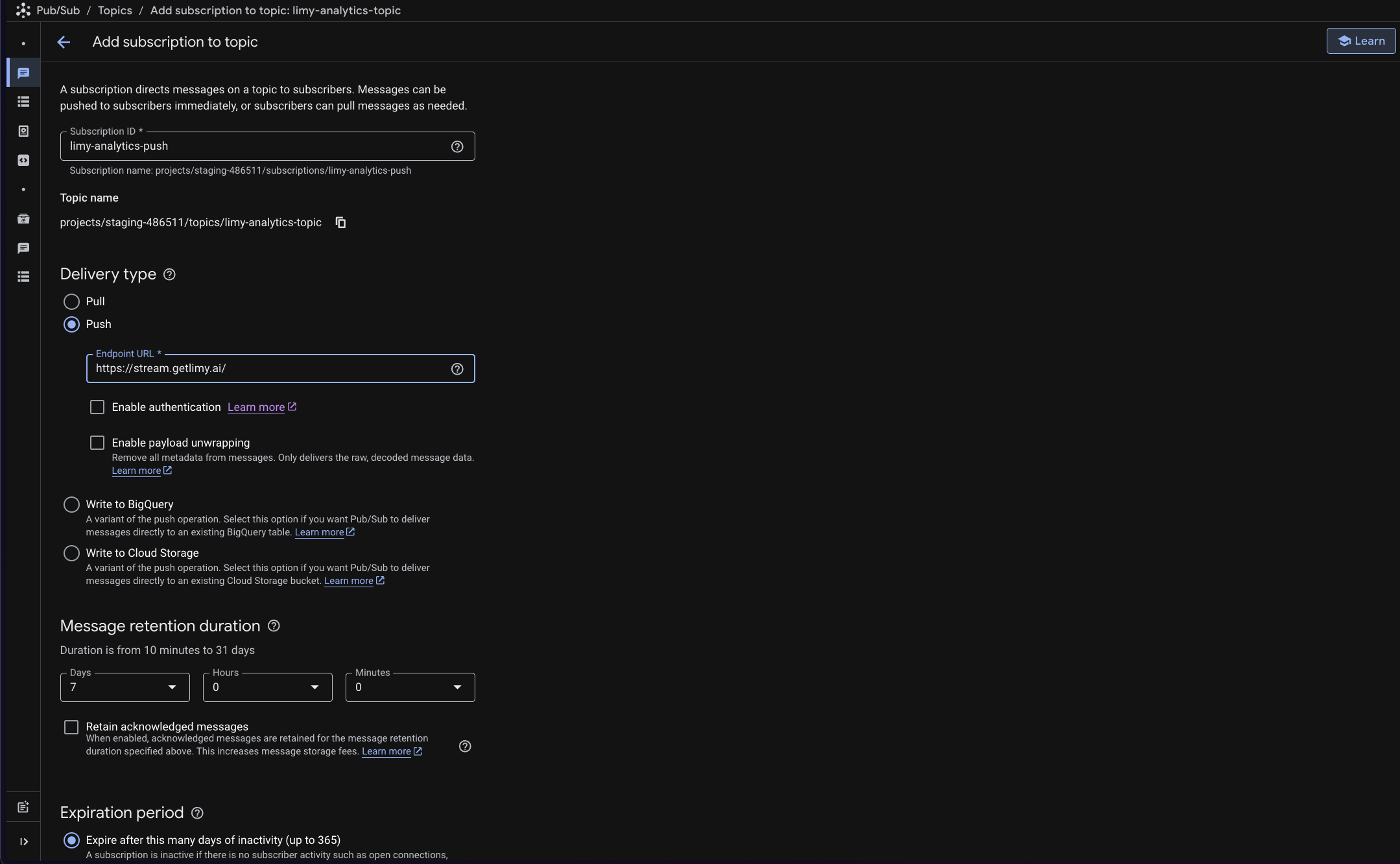
### Step 3: Create a Push Subscription
The push subscription sends each message to Limy Analytics automatically.
1. Navigate to **Pub/Sub → Topics →** `limy-analytics-topic`
2. Click **Create Subscription**
3. Fill in the following:
| Field | Value |
| --------------- | --------------------------- |
| Subscription ID | `limy-analytics-push` |
| Delivery type | **Push** |
| Endpoint URL | |
#### Add a Transform
The transform injects your Limy Analytics API key into each message and removes unused fields to reduce log export volume and improve performance.
7. Click **Add a Transform**
8. Enter `TransformGcpCdnToLimyFormat` as the function name
9. Paste the following code into the function body:
```javascript
function TransformGcpCdnToLimyFormat(message, metadata) {
const data = JSON.parse(message.data);
data['api_key'] = 'YOUR_LIMY_API_KEY';
// remove unused fields
delete data['insertId'];
delete data['jsonPayload'];
delete data['logName'];
delete data['receiveTimestamp'];
delete data['resource'];
delete data['severity'];
delete data['spanId'];
delete data['trace'];
message.data = JSON.stringify(data);
return message;
}
```
> **Important:** Replace `YOUR_LIMY_API_KEY` with your actual Limy Analytics API key.
10. Click **Validate** to ensure the function is valid
11. Click **Create**